ARMY AZURE VIRTUAL DESKTOP (AVD) INFORMATION and TROUBLESHOOTING PAGE |
|||
|
The Army removed the ability to check your Email, Teams, and SharePoint from Non Military computers on 11 June 2024 per this NETCOM Memo
People with an @health.mil email, please visit: https://dhaavd.com for information on how to access your email
The only option available to personal Windows and Mac users [NOT Chrome OS] is the use of AVD utilizing Windows App.
Here is how to set it up.
1. Make sure you have set up your computer to use your CAC per Windows / Mac instructions
2. You must register for an account here: https://myaccess.microsoft.us/@armyeitaas.onmicrosoft.us#/access-packages/b0a616f3-d77c-4f2d-bbb1-5d1bb9c5d709 Enter your full @army.mil email address, and Login with your CAC.
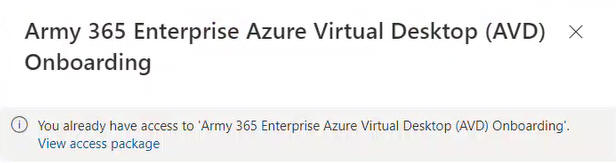
NOTE: If you see this message, you already have access, you can skip to step 4.
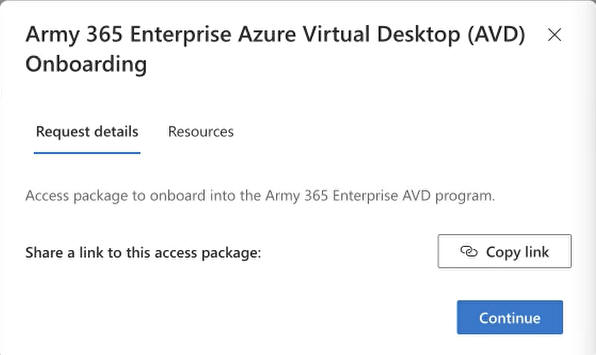
3. Click Continue
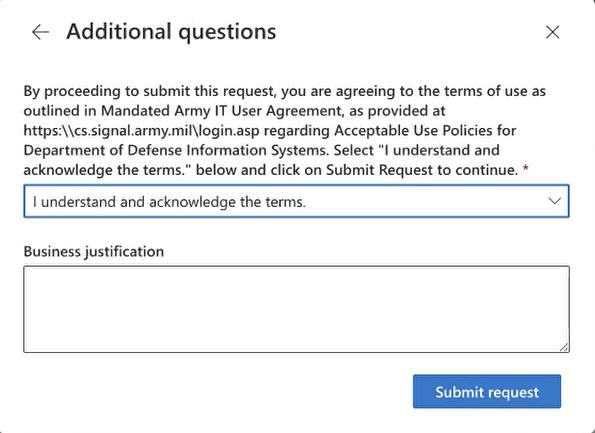
. . 3a. select I understand and acknowledge the terms from the drop down, [No Business justification is required]. Click Submit request. and wait roughly 15-30 minutes for the account to be created. They will email your @army.mil email account, which you can't access yet. This doesn't matter, as there is no action needed in the email.
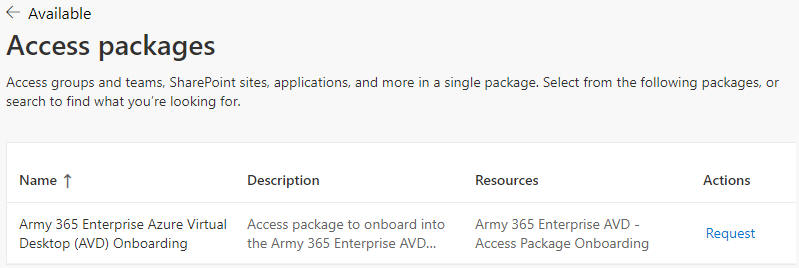
. . 3b. If the box above does not automatically pop up. Click Request to bring it up
4. Download Windows App from the Microsoft store by one of two ways: . 4.1 Type Windows App into your search box [at the bottom of your screen] and click on Windows App under Store, then click the Get button -or- 4.2 Download from the web: https://apps.microsoft.com/detail/9N1F85V9T8BN click Download or View in Store -or- 4.3 Download from the web: https://learn.microsoft.com/en-us/windows-app/whats-new Scroll down to the Public section and download the public release of the program outside of the Microsoft Store from one of the links listed.
Once downloaded, click on Sign in, enter your full @army.mil email address, select your CAC certificate, click OK, enter your CAC PIN, click Next for the 3 Welcome (or Skip) to Windows App screen.
Click Connect under either Army365 AVD - Arizona or Army365 AVD - Virginia
Windows 4b. Please continue to step 6 below
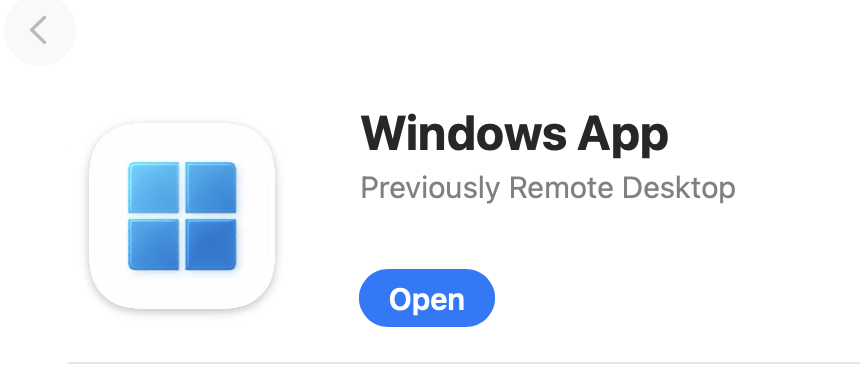
Mac: https://apps.apple.com/app/microsoft-remote-desktop/id1295203466?mt=12 NOTE: Requires Mac OS Ventura (13.x) or newer
Mac 4a. Click Get, (I know my image shows Open)
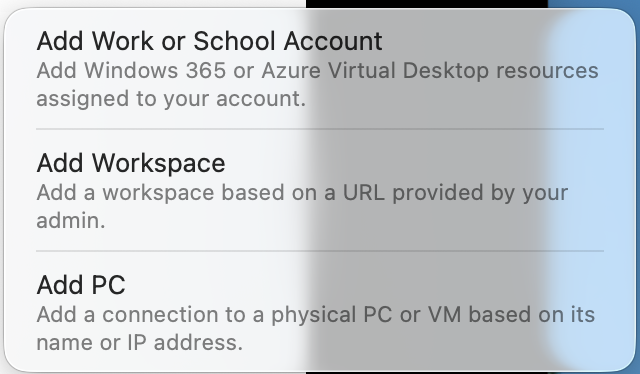
. Mac 4b. Click the + icon in the top right corner of the app
.
Mac 4c. click Add Workspace
.
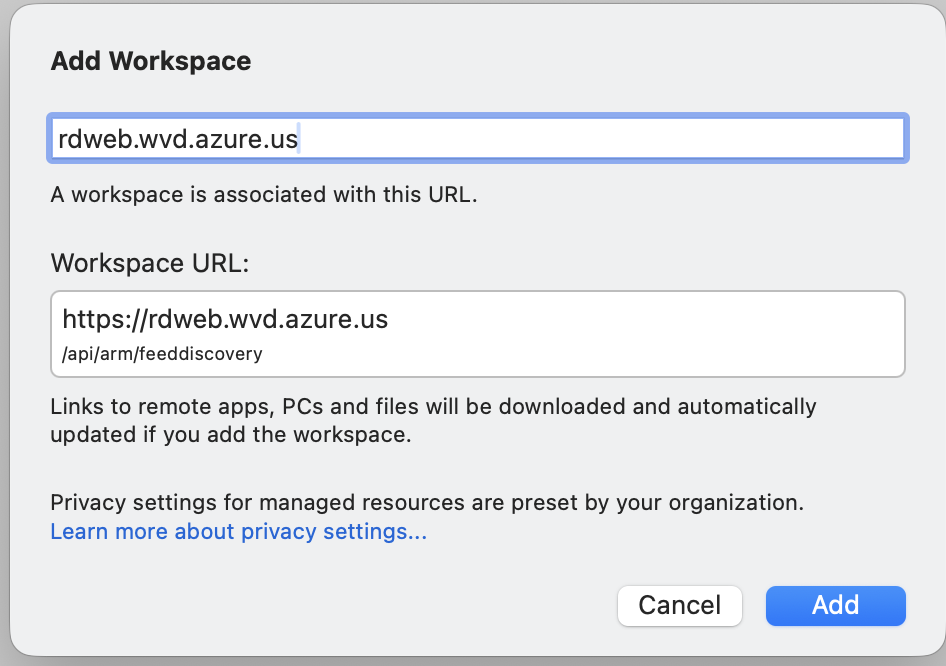
Mac 4d. In the Add Workspace box, paste this URL into the box: rdweb.wvd.azure.us, Click Add once it finds the workspace URL
5. When asked for email, enter your full @army.mil email address, and click Next (make sure your CAC reader is plugged in, and CAC inserted into the reader. Select the Certificate for PIV Authentication certificate, then Choose, Enter your CAC PIN
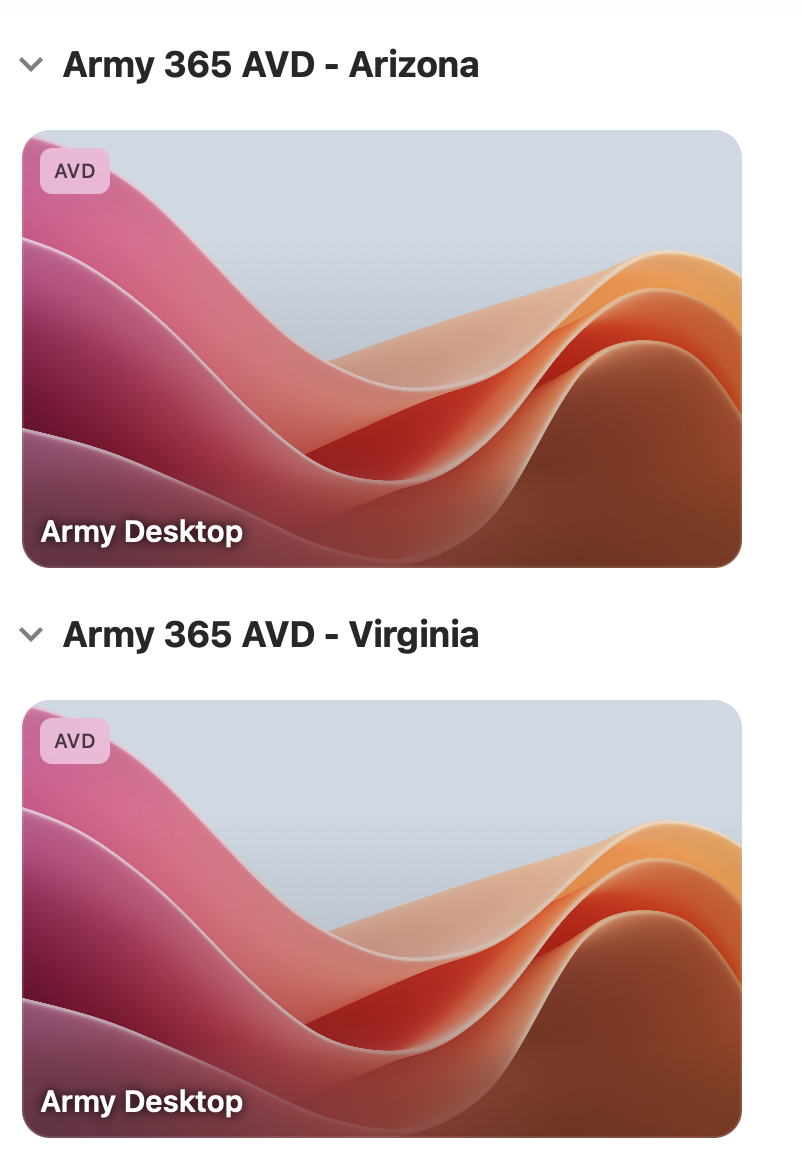
6. Once you see the below screen, double click the location closest to your physical location
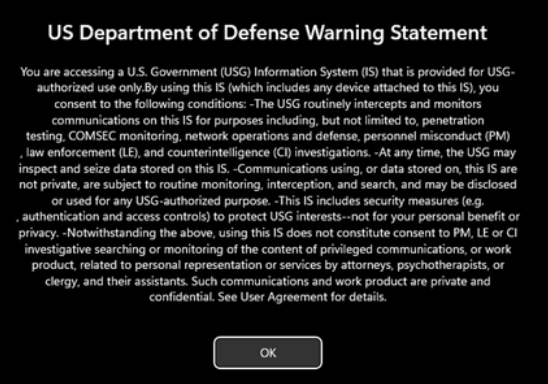
7. Read and select OK on the US Department of Defense Warning Statement
8. You are now in a Windows 11 virtual desktop, and are "on" the Army network, so, sites that are blocked from home, should now be accessible, such as ATRRS, and MedPros
NOTES: 1. There is currently NO support for Chrome OS, it may be supported in the future 2. If you don't want to install the software above, and don't need to access any CAC enabled websites or work with any encrypted email, you can use the web version in your Microsoft Edge web browser by visiting this link: https://client.wvd.azure.us/arm/webclient/index.html you'll need to enter your full @army.mil email address to access it.
Troubleshooting Section
Problem 1: My access was working on my Mac, then stopped for some reason
Solution 1-1: Open Keychain Access and remove the Identity Preference titled: https:// and / or https://certauth.login.microsoftonline.us
Here's how: Instructions on how to get to keychain
Problem 2: Can I access AVD without having to install the Windows App?
Solution 2: Yes, [using Microsoft Edge web browser] you can go to: https://client.wvd.azure.us/arm/webclient/index.html and log in.
Problem 3: How do I contact the AESD (Army Enterprise Service Desk) if I am still having problems?
Solution 3: Visit: https://www.aesmp.army.mil or call 866-335-ARMY(2769)
Problem 4: I am no longer able to login to Windows App on a Mac. It may state your Email Address is incorrect
Solution 4 part 1: Call AESD-W (see Problem 3 above) and ask them to check DEPO and see what your new email address is.
Solution 4 part 2: Hover your mouse on the name of the server Army365 AVD Workspace - Arizona and select the trash can. Do the same for Army365 AVD Workspace - Virginia, and select the trash can. Then follow step 4b through 7 above again.
Problem 5: Your CAC is not showing up to select to log into the web browser on your Mac
Solution 5-1: Select one of the Army Desktops, Click Connections (in top row), select Edit PC, click the box titled: Use custom settings. Then click the Devices & Audio [tab]. Make sure the box is checked next to Smart cards. If it was already checked, uncheck it, click Save. Then open it back up check the box, and click Save again.
Solution 5-2: If your using one of these readers, tests have shown to have issues with your Mac and AVD. If so, please try a different reader: -Zoweetek ZW-12026-1 -Rocketek -IOGEAR USB-C Smart Card Reader (TAA compliant)
Here's how: Look for the words: "Army 365 AVD
– Arizona" there are 3 little dots on the far right side.
Problem 7:
If you have an @health.mil email address, you have a different site to use.
Please visit https://dhaavd.com
for information. Utilize the Installation Guide for guidance.
|
|||
If you have questions or suggestions for this site, contact Michael J. Danberry
Last Update or Review: hrs
The following domain
names all resolve to the same website: ChiefsCACSite.com,
CommonAccessCard.us, CommonAccessCard.info, & ChiefGeek.us
|